
Semaphore - An open-source Ansible GUI

Semaphore is an open-source browser based GUI for Ansible. Semaphore has a slick interface and executes playbooks by reading them directly from a Github repository you give it credentials to. I wouldn’t necessarily say Semaphore is a complete package for Ansible but for the purposes of a homelabber it will work great. In fact Ansible really only has two main popular GUI associated with it, Ansible Tower or AWX, and Semaphore. Ansible Tower uses kubernetes and can get very complicated. If you want a simple open-source option, weirdly, I’ve really only seen Semaphore.
Before we jump into Semaphore it’s important that you have an understanding of Ansible as a whole. If you need to brush up on any topics I’ve also written a deep dive on it found here: Ansible the automation king
Semaphore Overview
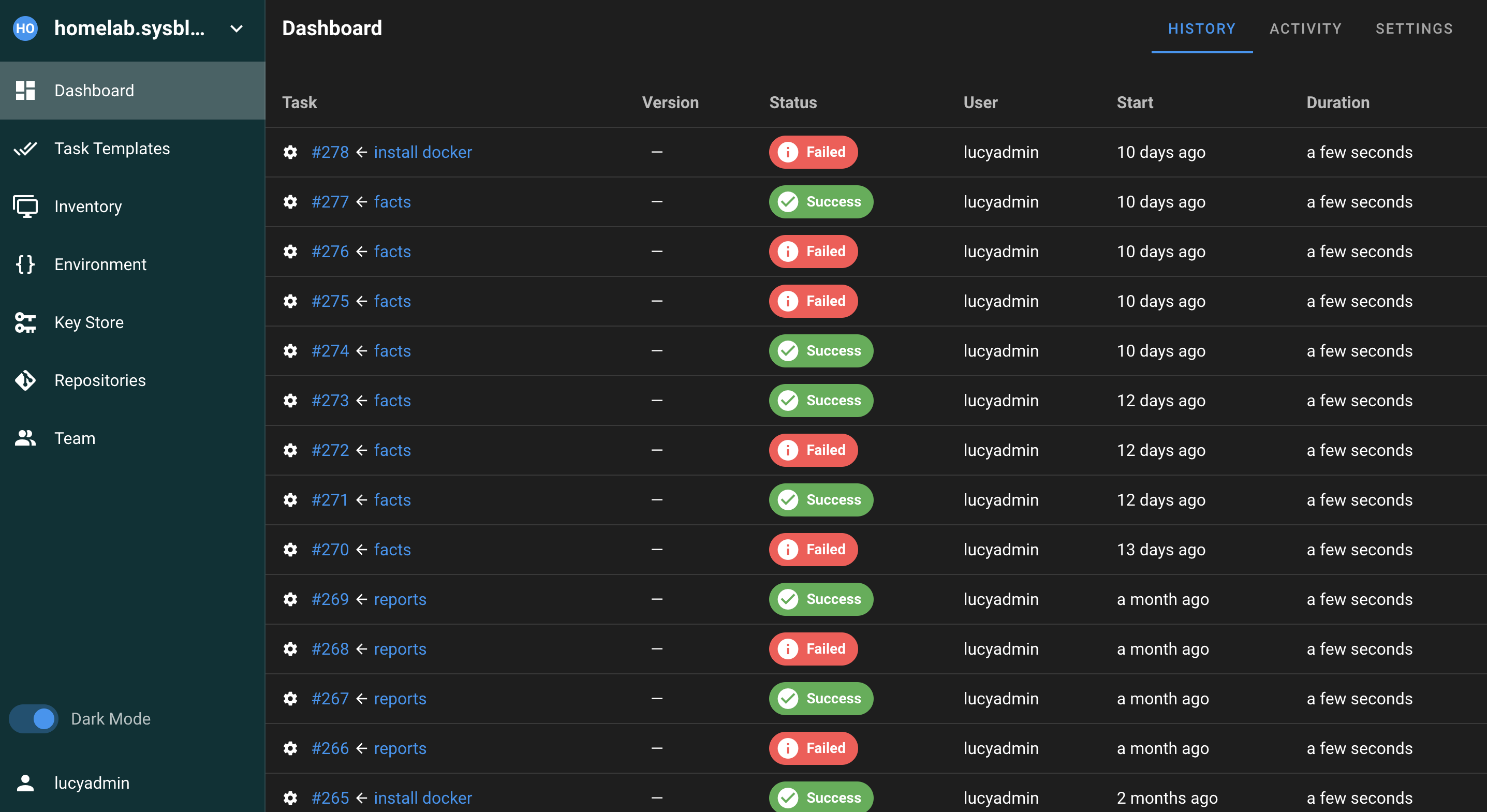
Semaphore runs in a Docker container to create a smooth browser based Ansible experience. Semaphore includes a place to edit and store your inventory files, an environment for variables, keystores for your SSH connections, and of course an interface to run your playbooks. As you can see below editing your inventory file is right there in the interface and easy to use.
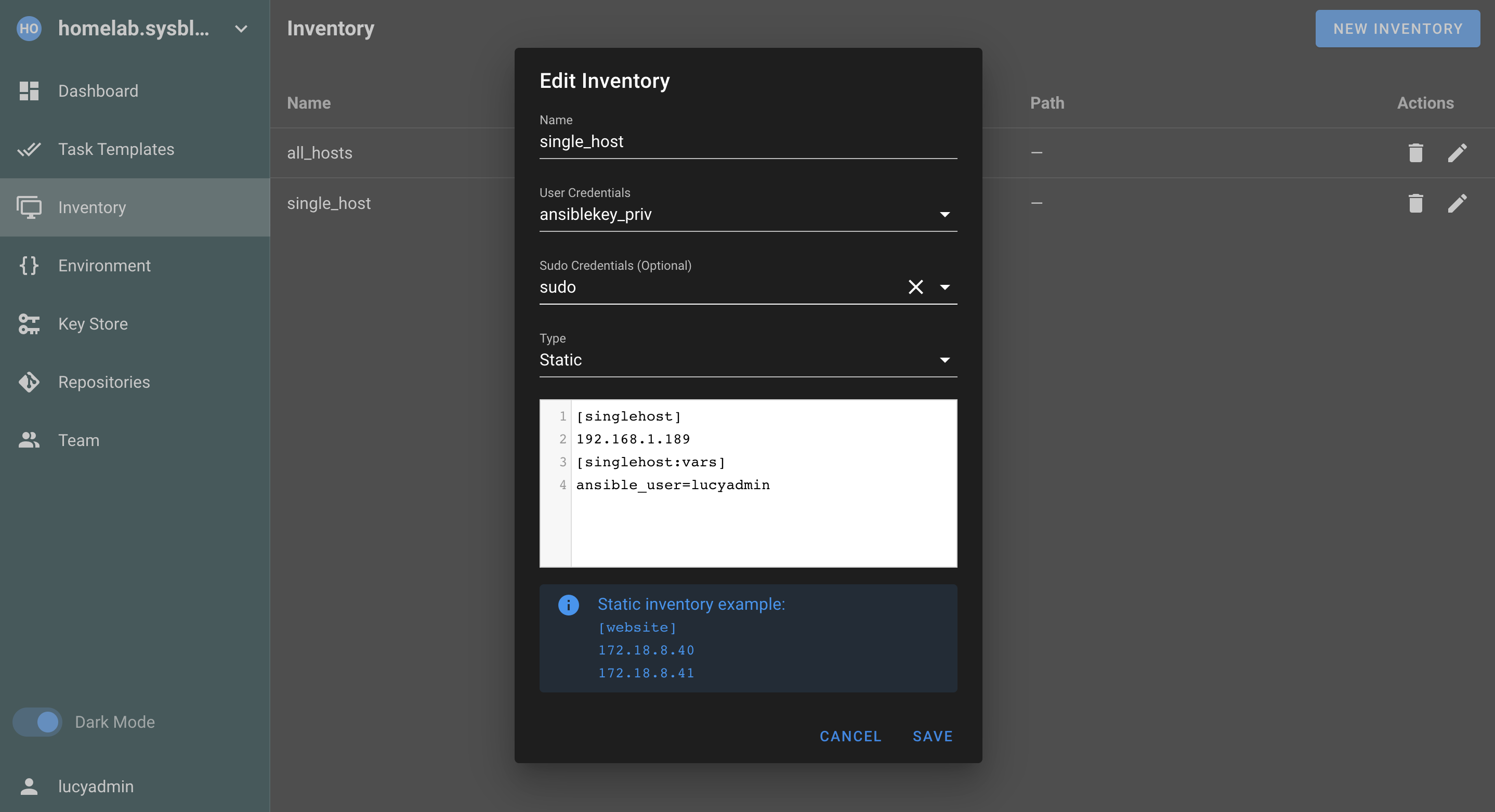
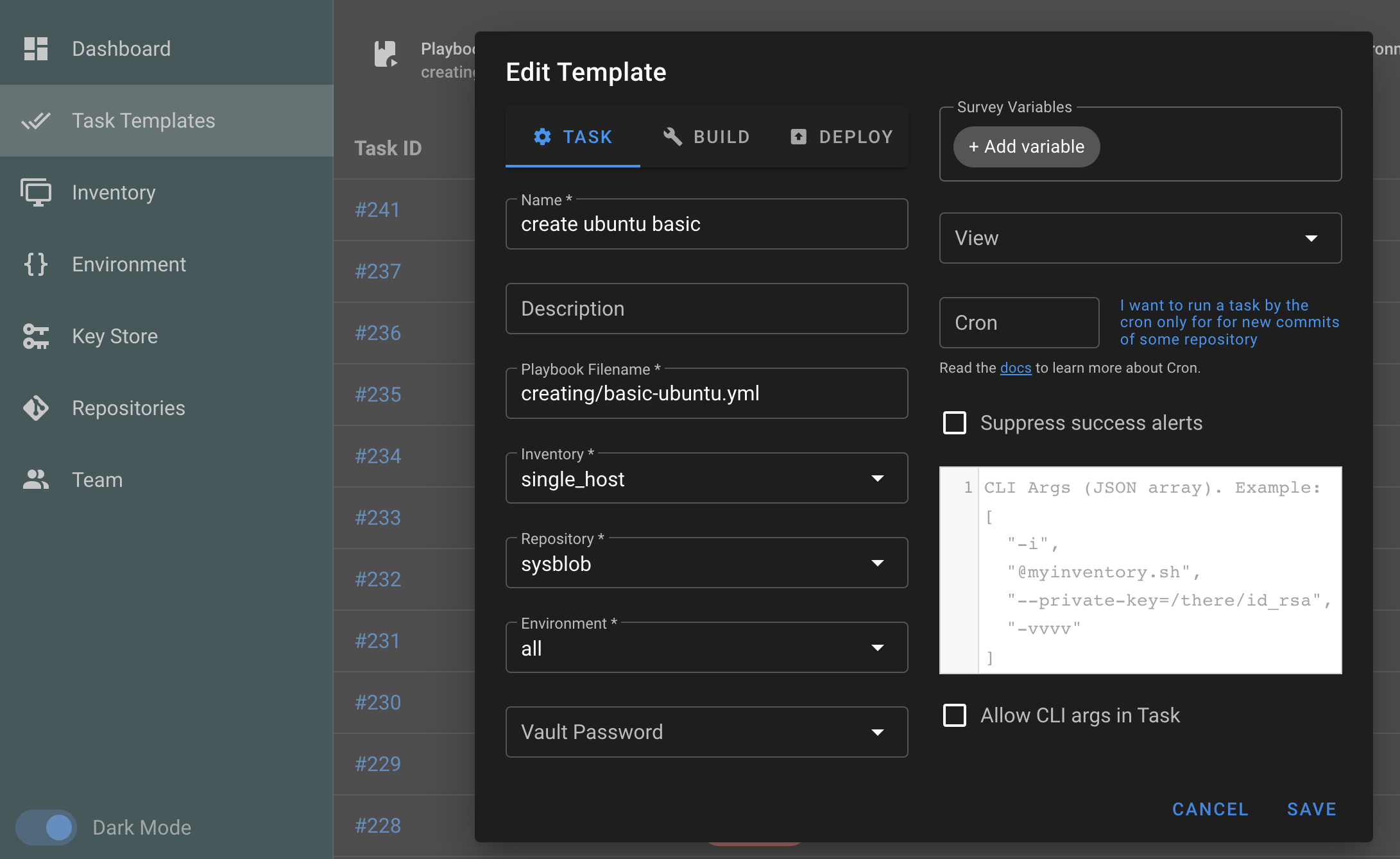
One major gripe I have about Semaphore is it doesn’t let you edit your Playbooks within the GUI. I’m honestly not sure what the limitation here was and it seems a little silly. Instead, Semaphore runs all your playbooks directly from a Github repository. This isn’t the end of the world as versioning and managed playbooks via Github is a nice bonus. There are options to edit in the playbook GUI but it’s mostly just specifying environment and inventory type connections.
Semaphore Setup
Semaphore as mentioned previous installs via a docker container and is pretty easy to setup. Run this docker compose file after editing.
If you need assistance with Docker see my Docker guide: Docker indepth dive
1
2
3
4
5
6
7
8
9
10
11
12
13
14
15
16
17
18
19
20
21
22
23
24
25
26
27
28
29
30
31
32
33
34
35
36
37
services:
  mysql:
    restart: unless-stopped
    ports:
      - 3306:3306
    image: mysql:8.0
    hostname: mysql
    volumes:
      - semaphore-mysql:/var/lib/mysql
    environment:
      MYSQL_RANDOM_ROOT_PASSWORD: 'yes'
      MYSQL_DATABASE: semaphore
      MYSQL_USER: semaphore
      MYSQL_PASSWORD: semaphore
  semaphore:
    restart: unless-stopped
    ports:
      - 3000:3000
    image: semaphoreui/semaphore:latest
    environment:
      SEMAPHORE_DB_USER: semaphore
      SEMAPHORE_DB_PASS: semaphore
      SEMAPHORE_DB_HOST: mysql # for postgres, change to: postgres
      SEMAPHORE_DB_PORT: 3306 # change to 5432 for postgres
      SEMAPHORE_DB_DIALECT: mysql
      SEMAPHORE_DB: semaphore
      SEMAPHORE_PLAYBOOK_PATH: /tmp/semaphore/
      SEMAPHORE_ADMIN_PASSWORD: passwordhere
      SEMAPHORE_ADMIN_NAME: lucyadmin
      SEMAPHORE_ADMIN_EMAIL: emailhere
      SEMAPHORE_ADMIN: lucyadmin
      SEMAPHORE_ACCESS_KEY_ENCRYPTION: gs72mPntFATGJs9qK0pQ0rKtfid6MHy9bH9gWKhTU= # long string which authenticates clients
      SEMAPHORE_LDAP_ACTIVATED: 'no' # if you wish to use ldap, set to: 'yes'
    depends_on:
      - mysql # for postgres, change to: postgres
volumes:
  semaphore-mysql: # to use postgres, switch to: semaphore-postgres
Semaphore should now be available on port 3000 via hostname:3000 in your browser.
Using Semaphore
There are a few quirks you need to do to get Semaphore executing playbooks. I have made note of them to make your life more simple.
First define an environment. If you don’t know what this is keep it simple and make your environment like mine.
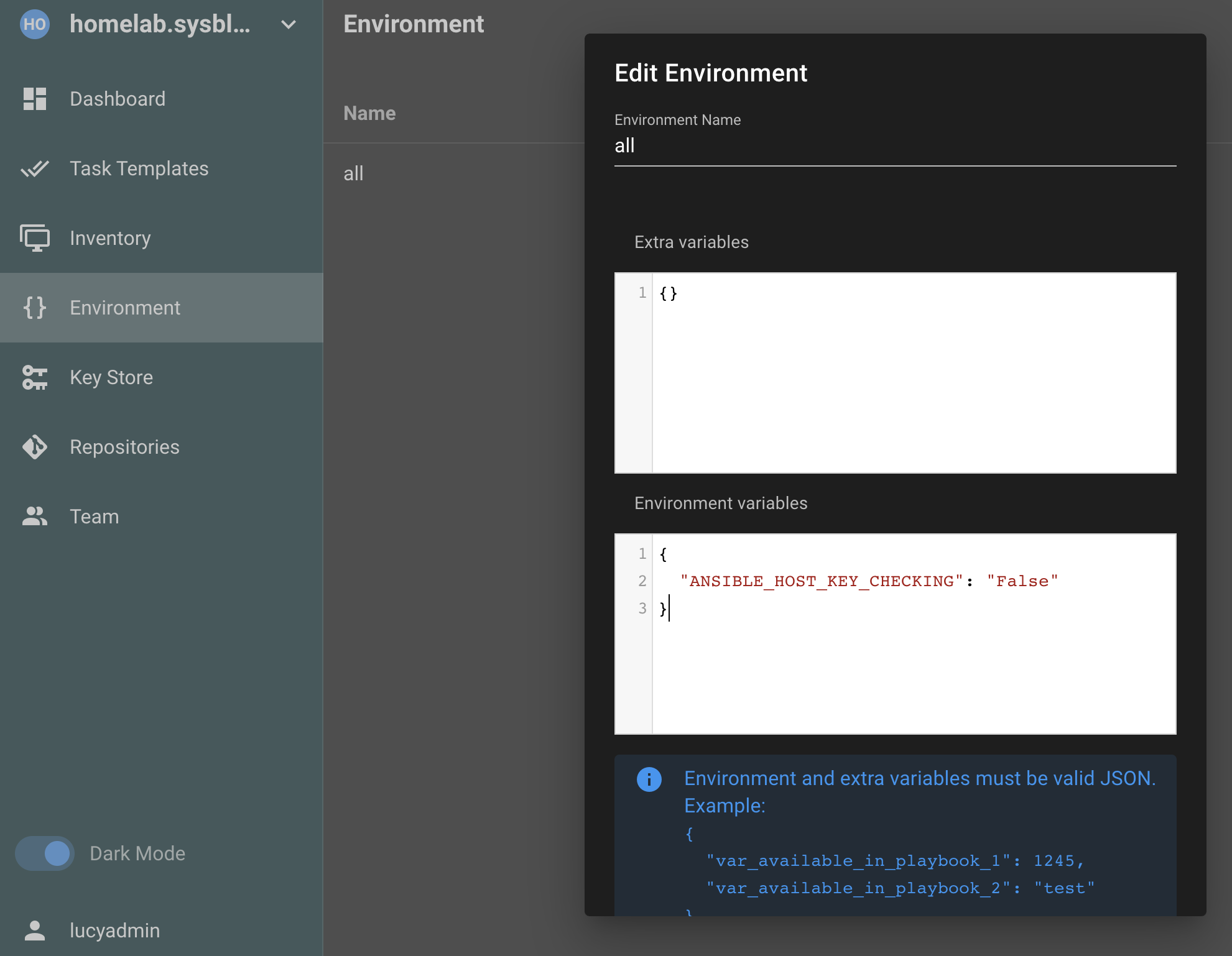
Host key checking is a variable I like to have disabled. This is what controls checking host connections against your known_hosts file. You can leave this turned to the default of on but you then need to maintain a good known_hosts file on the semaphore linux host to all the hosts you intend to connect to via SSH. Since we’re internal and safe here anyway, I just disable it.
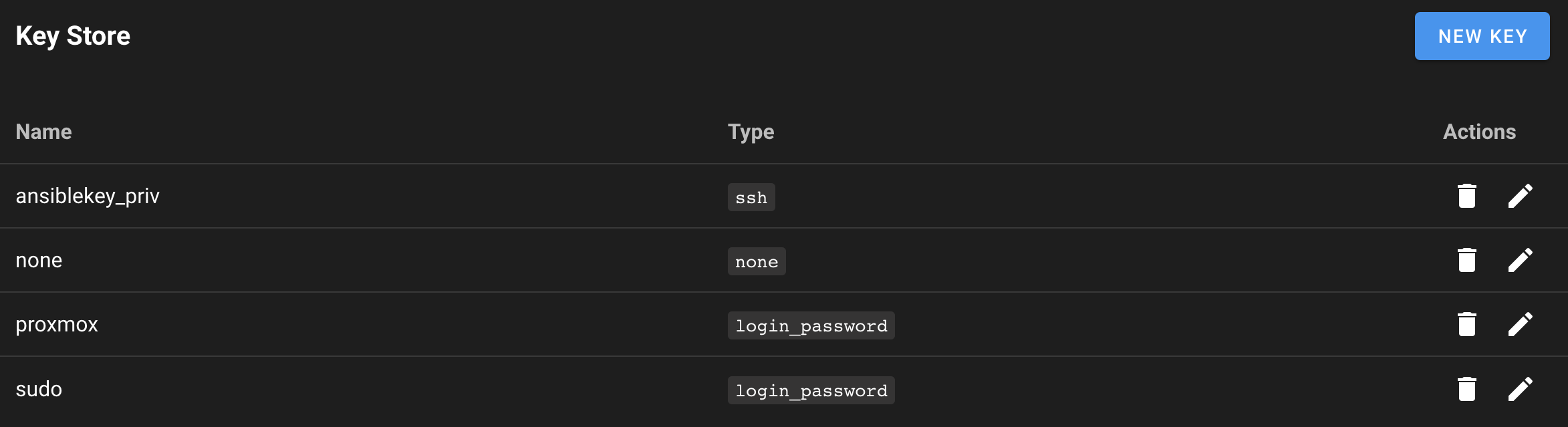
We also need to set our SSH keys for Ansible or specify username and password. Semaphore allows you to create both methods here. Also while you’re here you can create the password variable used for when you do sudo commands (or passwords for become_user).
Finally, don’t forget to create an inventory file and specify your Github repository. The URL should be the direct URL of your repository so in the format of https://github.com/username/semaphore_repo is what it’s looking for. You can then create any directories you want in your github to organize your playbooks. Here is an example of mine.
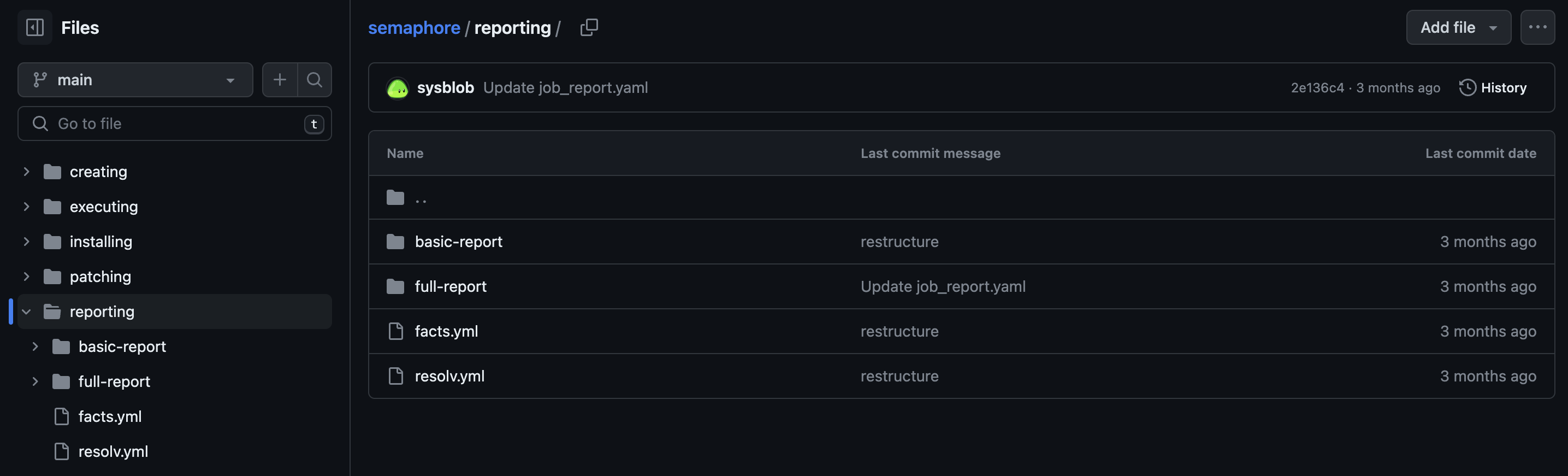
When you add your playbook you can then add the path directly to your playbook filename line.

Summary
I knew very early Ansible is one of those tools that just works better inside a GUI. Frankly, I’m shocked there aren’t more alternatives to Semaphore out there. I’m very happy with what it can do for my lab though as it allows me to execute my playbooks without having to muck through memorizing or looking up commands. With Ansible semaphore I keep my VMs and containers updated, do quick reboots, and even use it for some installation and setup processes. While it doesn’t capture some of the more complex workings of Ansible it certainly gets the job done in a world where there doesn’t seem to be anyone else.